Materials
- You can access the Materials tab from the Materials link in the top right corner of the page.
- In the My Materials tab, you can see the materials targeted to you based on the subject saved in your profile.
- In the School’s Materials tab, you can find all the materials the school has access to.
- In the Trial Materials tab, you can take materials for a 30-day trial.
- You can also filter the materials available at the school using the search function.
- Save favorites by clicking the bookmark icon.
- Redeem digital material by clicking the Redeem Digital Material button using the activation code received in your order confirmation.
Tip! In Nova, digital materials open in the same browser window. This is based on digital service accessibility requirements. You can open the material in a new tab by right-clicking and selecting “Open link in new tab” or “Open link in new window”.
Groups
- In the Groups tab, you can create a new group, view and edit your groups.
- In the Own Groups section, you can see the groups you have created and the groups you have joined.
- In the School’s Groups section, you can find all the groups created at the school.
- You can filter groups.
- By default, active groups are displayed. You can also view archived groups.
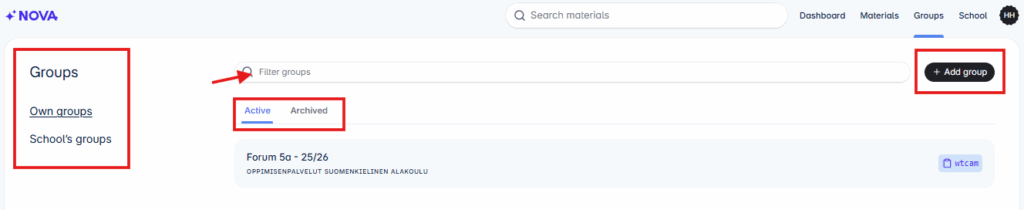
Add Group
- Start adding a new group by clicking the +Add Group button.
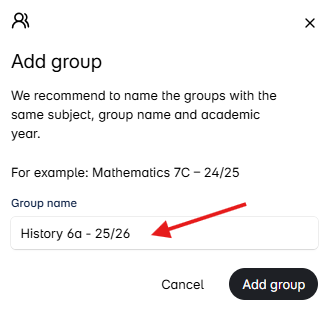
- Give the group a descriptive name and click Add Group.
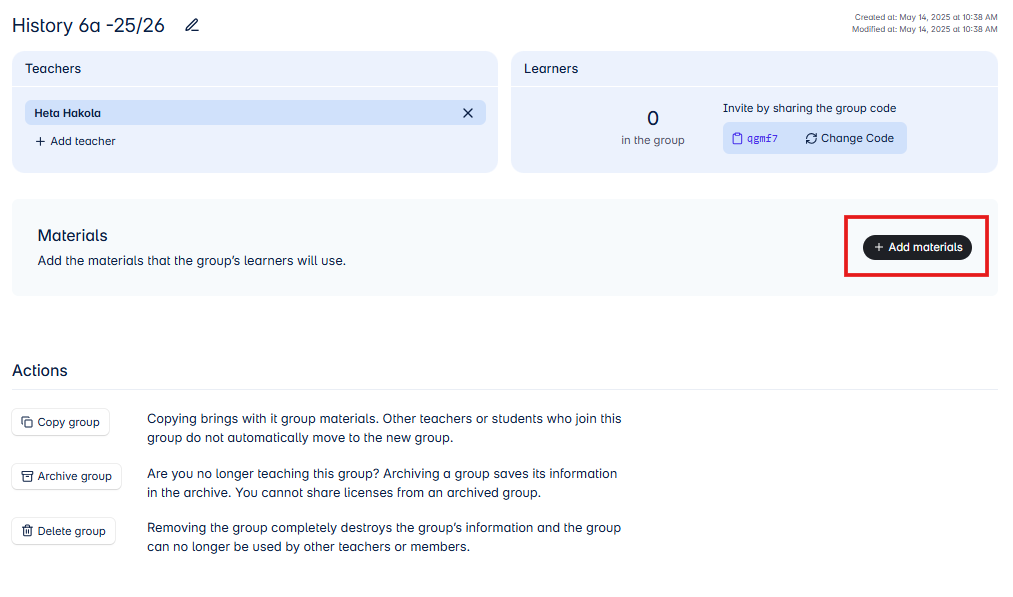
- Next, add a license to be distributed to the learner in the group by clicking the +Add Materials button.
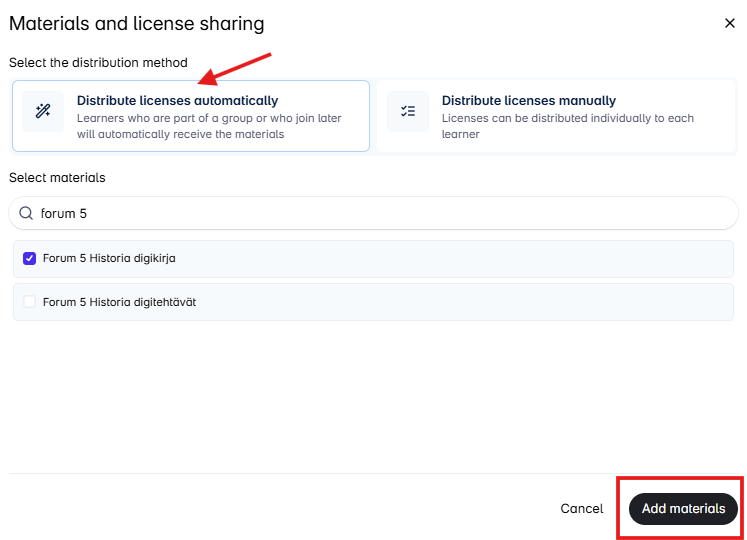
- Choose whether you want to distribute the license automatically to all learners (distribute licenses automatically) or individually to each learner (distribute licenses manually).
- Then select the material to be distributed to the learner (in this example: Forum 5 History digital book) and click the Add Materials button.
- A group code will be generated for the group. Invite the learner to join your group by sharing the group code with them.
- In the group view, you can also copy, archive, or delete the group.
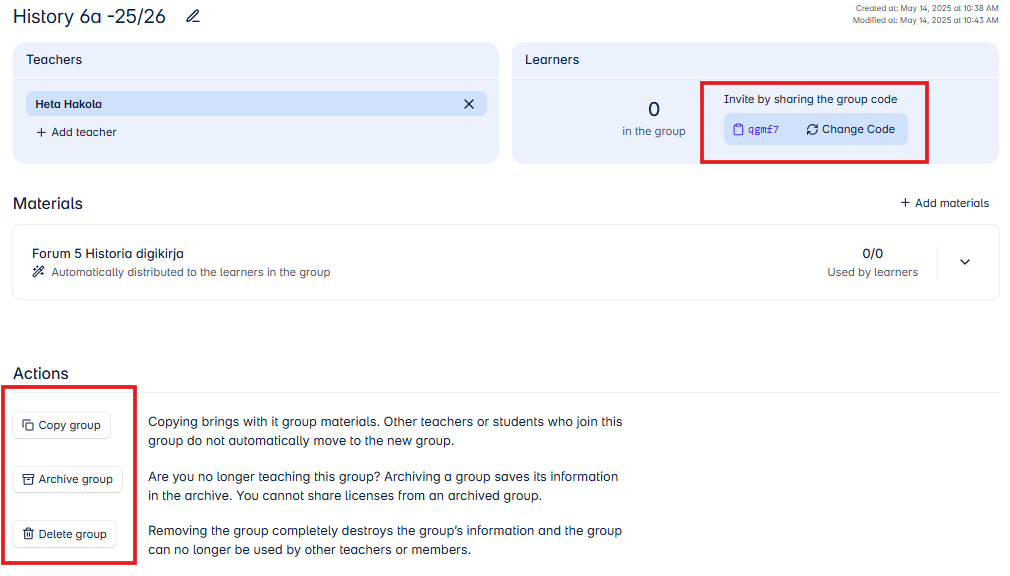
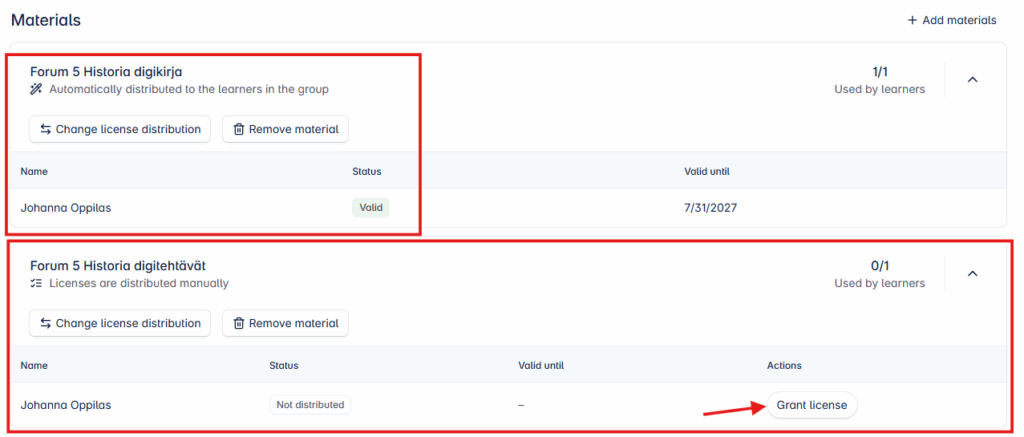
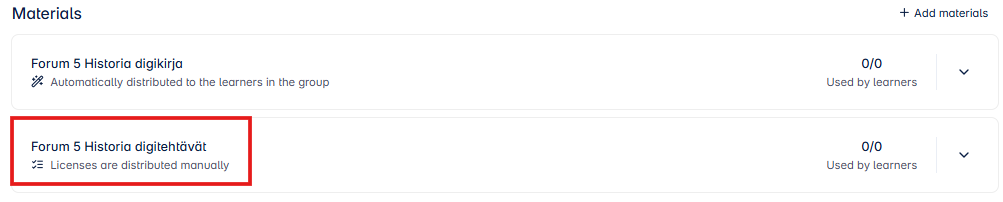
- In the group’s Materials section, you can add more licenses to the group if needed, remove a license, or change the license distribution method.

- In this example, another digital license (Forum 5 History digital tasks) has been added to the group, which is distributed individually to each learner (not automatically to all learners in the group).
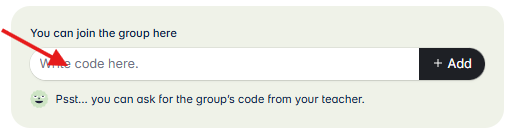
- A primary education student joins the group in Nova using the group code.
- In primary education groups, the teacher also has the option to add the student to their group through the Learners section in the group view.

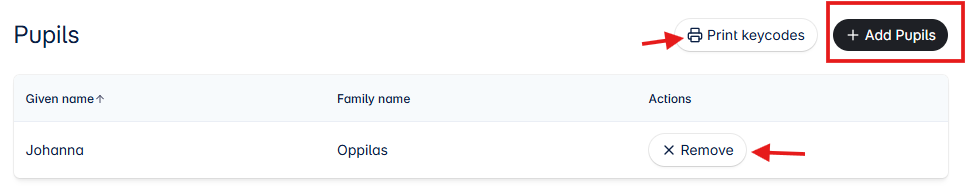
- Select the pupil for your group by clicking the +Add Pupils button. You will get a list of pupils added to the school’s pupil list.
- In the Pupils section, you can print the key codes for your group’s pupils if needed. Removing a pupil from the group is also done here.
- After joining or adding a pupil to the group, the group view will update with the information that the pupil has joined your group.
- The pupil automatically received the Forum 5 History digital book license upon joining the group. The status “Valid” indicates that the pupil has opened the license and activated the digital book. Before opening the license, the status will show “Waiting fo Activation“.
- The Forum 5 History digital tasks license was chosen to be distributed manually. If you want to distribute the license to the pupil, click the Grant license button.